MySQL Workbench Release Notes
Forward engineering enables you to create a script of your
database model. You may export a script to alter an existing
database or create a new database. The script to create a database
is similar to the one created using the mysqldump
db_name command.
Choosing to create a database yields additional options.
With the MySQL Model
(model-name.mwb) tab open,
click ,
, and then to start the Forward
Engineer SQL Script wizard. The following figure shows the first
page of the wizard.
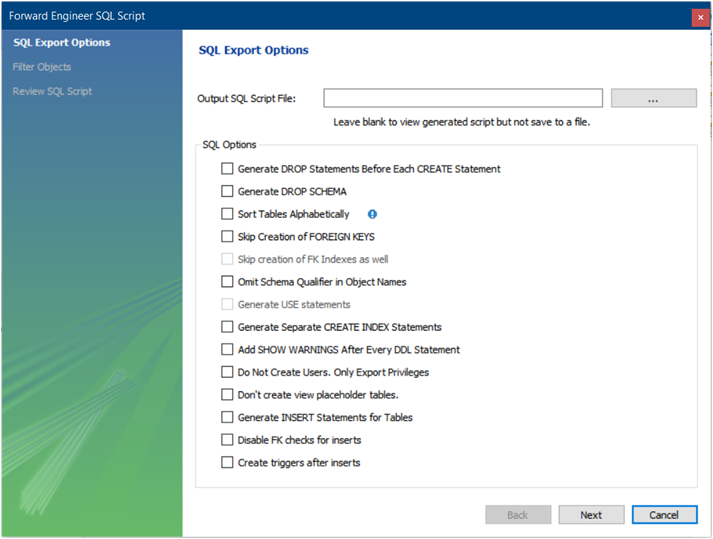
The SQL Export Options displays the following facilities:
-
Output SQL Script File:
To specify the output file name, enter it into the Output SQL Script File field, or use the button to select a file. Leave this field blank to view, but not save, the generated output.
-
Generate DROP Statements Before Each CREATE Statement
Select this option to generate a statement to drop each object before the statement that creates it. This ensures that any existing instance of each object is removed when the output is executed.
Generate DROP SCHEMA
-
Sort Tables Alphabetically
When this option is unchecked, tables are sorted according to foreign-key references.
Skip creation of FOREIGN KEYS
Skip creation of FK Indexes as well
-
Omit Schema Qualifier in Object Names
Select this option to generate unqualified object names in SQL statements.
Generate USE statements
-
Generate Separate CREATE INDEX Statements
Select this option to create separate statements for index creation instead of including index definitions in
CREATE TABLEstatements. -
Add SHOW WARNINGS after every DDL statement
Select this option to add
SHOW WARNINGSstatements to the output. This causes display of any warnings generated when the output is executed, which can be useful for debugging. -
Do Not Create Users. Only Export Privileges
Select this option to update the privileges of existing users, as opposed to creating new users. Exporting privileges for nonexistent users will result in errors when you execute the
CREATEscript. Exporting users that already exist will also result in an error. Don't create view placeholder tables
-
Generate INSERT Statements for Tables
Select this option if you have added any rows to a table. For more information about inserting rows, see Section 8.1.1, “SQL Query Tab”.
Disable FK checks for inserts
Create triggers after inserts
Clicking opens the SQL Object Export Filter page (see the figure that follows), which enables you to select the objects for export.
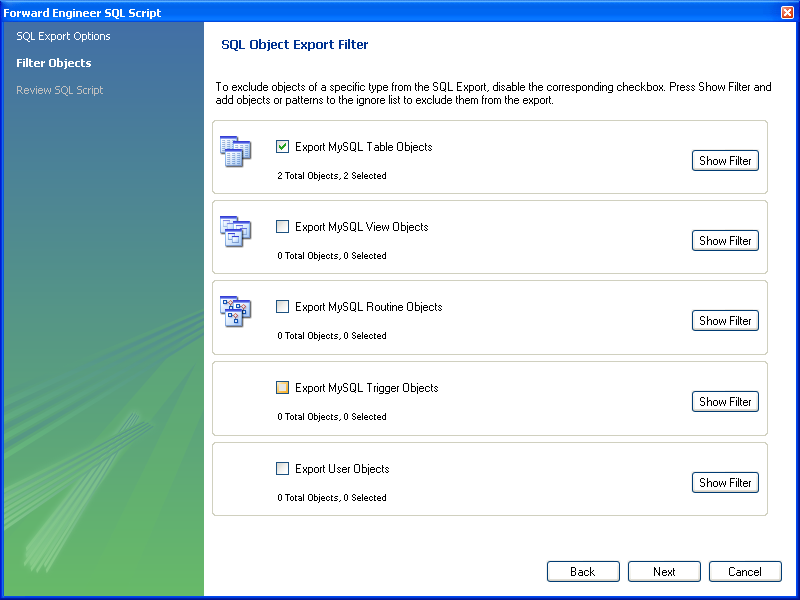
Use to fine tune (filter) the objects for export. After selecting the objects to export, click to hide the filter panel.
After selecting the objects to export, click to review the generated script. The following figure shows an example script to review.
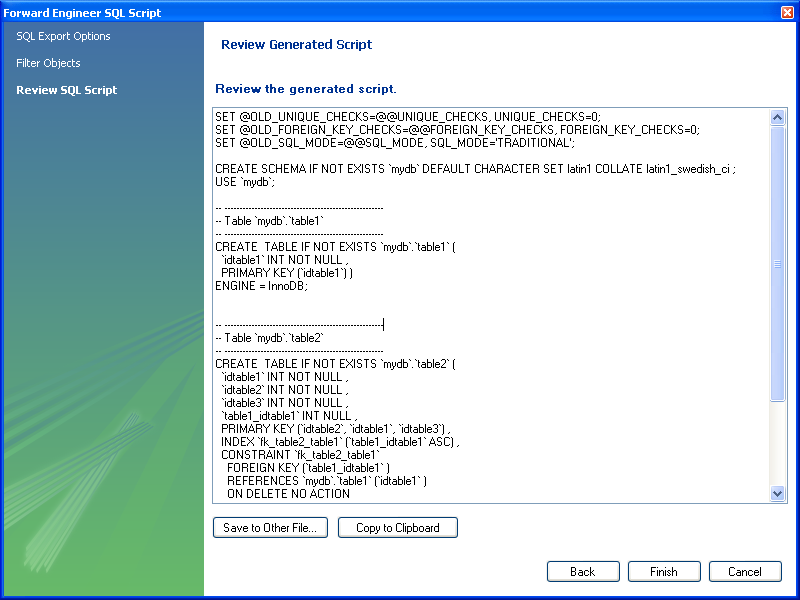
You may return to the previous page using the button.
The button saves the script file and exits. You can then use the saved script to create a database.
The menu item for creating an ALTER Script File is , . Typically, this option is used when the SQL script of a database has been imported into MySQL Workbench and changed, and then you want to create a script that can be executed against the database to alter it to reflect the adjusted model. For instructions on importing a DDL script, see Section 9.4.2.1, “Reverse Engineering Using a Create Script”.
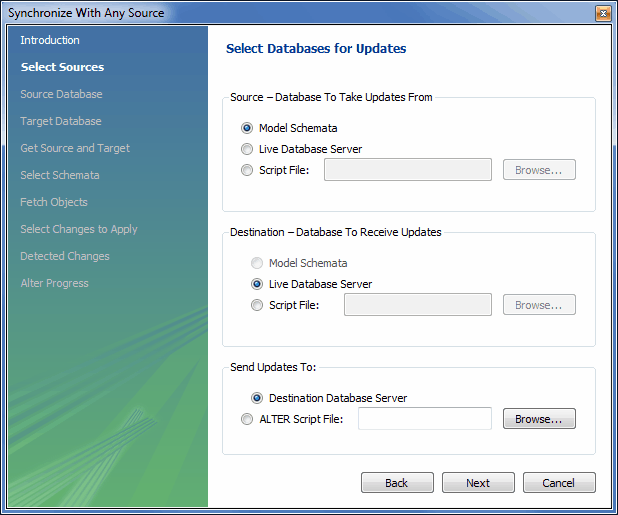
Select the , menu item to start the wizard. You will be presented with the first page showing the introduction and then the available options for setting the source and destinations of the updates.
For additional information, see Section 9.5.1, “Database Synchronization”.