MySQL Workbench Release Notes
Synchronize data between models, databases, and SQL files. These three types can be the target (destination), source, or both. You can also select or deselect individual objects and modify their direction during the synchronization. For example, you can synchronize tables from a model to your database, other tables from your database to your model, and skip a few tables all during the same synchronization process.
Note
Be aware that backward incompatible MySQL syntax changes are introduced over time, so for this reason it is important to set the Default Target MySQL Version modeling preference according to your needs. For example, exporting results from a MySQL 5.7 target might yield invalid syntax when executed against MySQL 5.6. See also Section 3.2.4, “Modeling Preferences”.
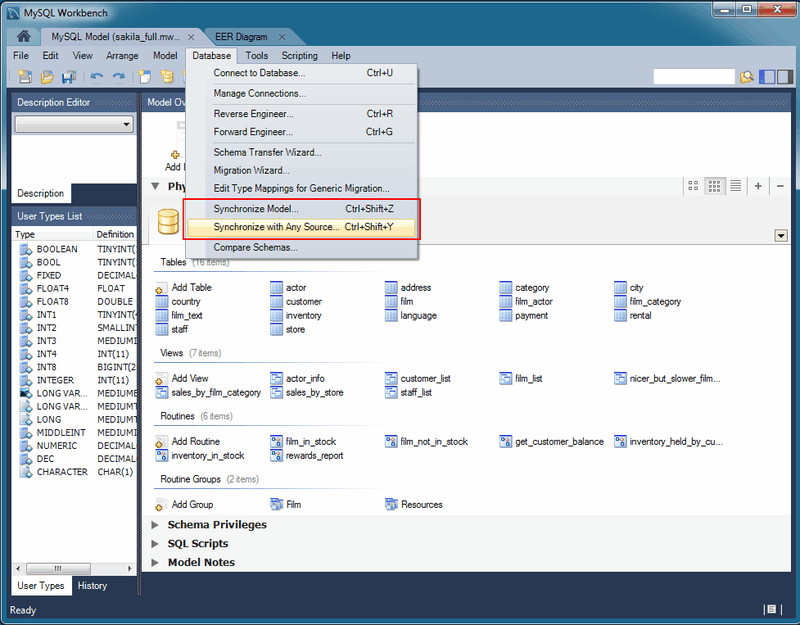
To start, select from the navigation menu, as the following figure shows. Alternatively, select Synchronize Model to open the same wizard that defaults to a model. A Model or EER diagram must be selected for these synchronization options to be present under the navigation menu.
Caution
Because MySQL databases correspond to directories within the data
directory, you must consider case sensitivity for database, table,
and trigger names, which follow the case sensitivity rules of the
underlying file system for your operating system. Synchronizing
models with objects that differ in case may lead to MySQL Workbench
producing a DROP statement for that object,
before recreating it as lowercase. For more information, see
Identifier Case Sensitivity
Workarounds include using a consistent convention, where the most
portable code uses lower case database and table names. Or a
temporary workaround is to delete the DROP SCHEMA IF
EXISTS line from the generated query.
MySQL Workbench enables control over objects to synchronize, and the direction of synchronization for each object. Synchronization options include:
Specify all or specific tables and objects to synchronize.
Synchronize both the model and live database, or only update one or the other (unidirectional or bidirectional).
Optionally update from or to an SQL script file.
Instead of executing the synchronization, you may generate an ALTER Script File to later perform the appropriate updates.
Fine-tune how the synchronization will be performed by choosing the direction of each individual object or by configuring particular objects to be ignored.
There are two similar database synchronization wizards available from the menu. The simpler Synchronize Model wizard, and the more flexible Synchronize with Any Source wizard. The descriptions that follow apply to both, unless stated otherwise.
Synchronize Model (with Database)
To start the wizard, open a model and select , from the main menu. Follow the sequence of steps until you reach the Select Changes to Apply step, as the next figure shows.
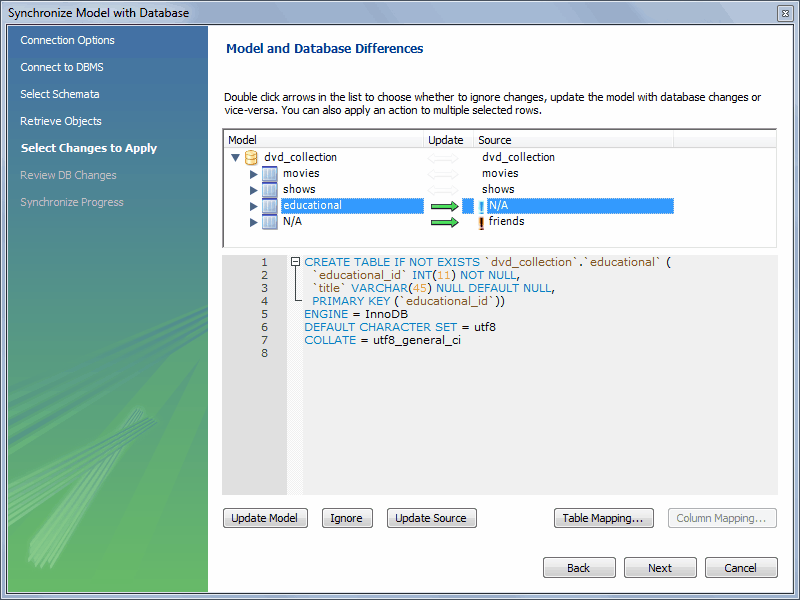
In the preceding example, the live database and model both have
movies shows tables. In the
MySQL Workbench, an additional table, educational,
has been created in the model, but it lacks an equivalent in the
live database. Further, friends exists in the
live database, but it is not in the model. By default, the actions
will synchronize the database with the model, so in this example the
educational table will be added to the source,
and the friends table will be removed from the
source.
As described in the GUI, double-clicking the arrows will alternate between the , , and actions. You may also select a row and click one of the three action buttons. Also note that clicking on a row will reveal the associated SQL statement, as shown in the previous figure.
The next figure shows an example of how the direction of synchronization can be changed.
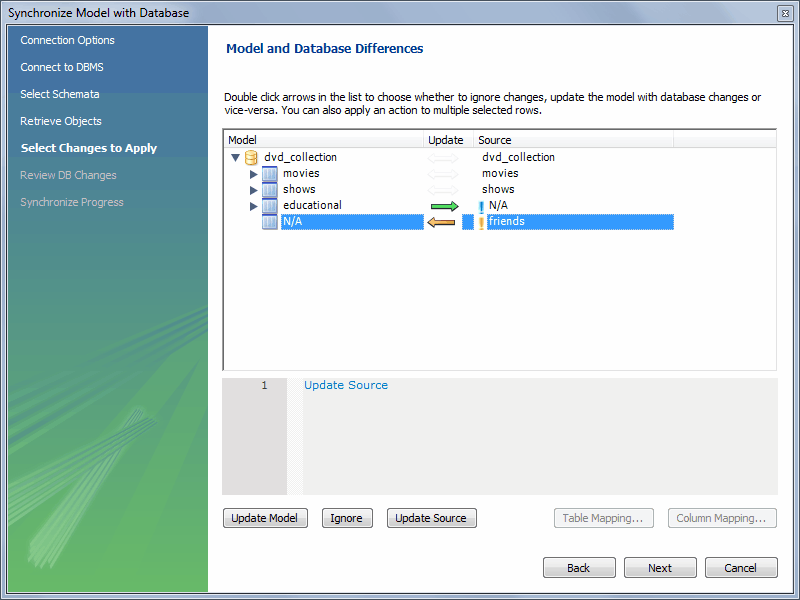
In this case, the synchronization direction has been changed so that
rather than the default action of friends being
dropped from the live database, it will be incorporated into the
MySQL Workbench model. As before, educational table
will be added to the live (source) database.
The three actions available actions are:
: Causes the selected changes to be applied to the model, from the live database.
: Causes the changes to be ignored. No synchronization will take place for those changes. This is designated with a double arrow that is crossed out.
: Causes the changes to be applied only to the live database.
Clicking offers additional mapping options, as the following figure shows.
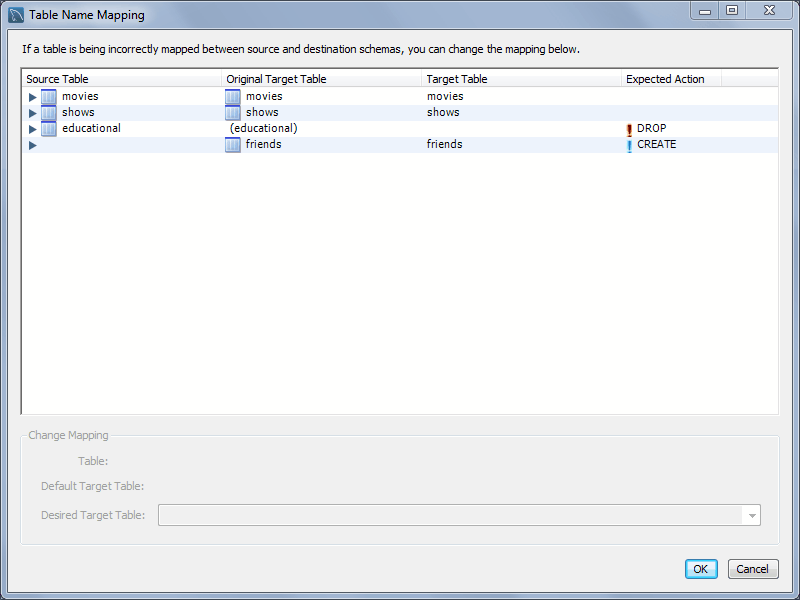
Clicking reveals the SQL statement to perform the configured model and live database (source) synchronization. The following figure shows an example preview.
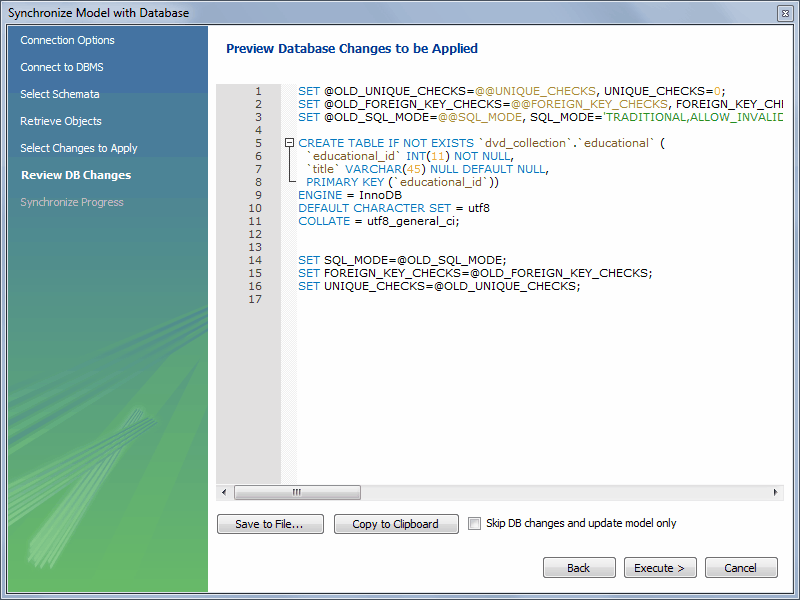
You may now save the SQL statement to a file or the clipboard, or execute the SQL statement. If you choose to execute the change in MySQL Workbench, then you may optionally choose to skip "DB changes" so that only your model is altered.
Synchronize With Any Source
To start the wizard, open a model and select and then from the main menu. The steps are similar to the Synchronize Model wizard, but with additional options to create SQL script files, use SQL script files, or both. The following figure shows the Select Sources settings.
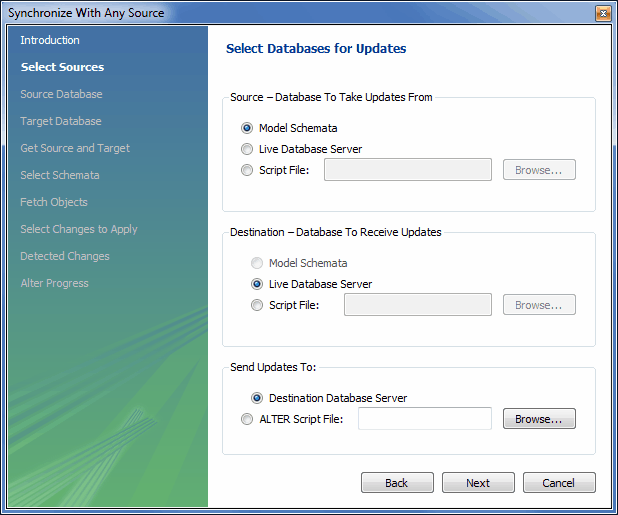
Notice how the source and destination types can be altered. The steps that follow depend on these source and destination types, and the Synchronize Model describes the basic functionality of this wizard.