Workspace Content
In MySQL AI, Workspace is the main place for creating content, opening existing work, and organizing related items into projects when you need more structure. You can begin in Workspace immediately, then introduce projects as your work grows.
Use this guide when you want to understand how files, projects, editors, and content management work together inside Studio.
Start in Workspace
Open Workspace from the main navigation when you want to:
- create SQL files, notebooks, Python files, and other content
- open existing content and continue working
- browse related content in one place
- organize work into projects
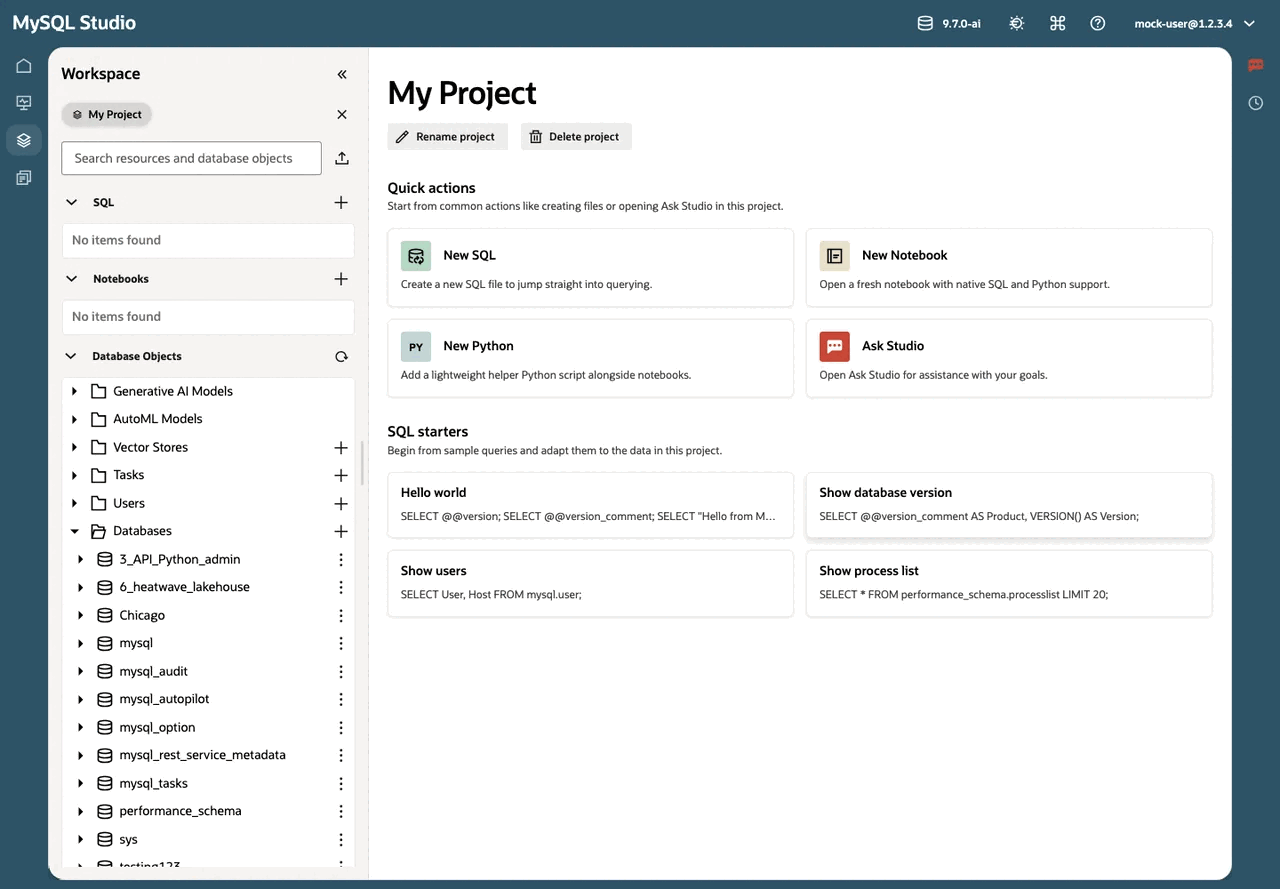
Workspace has two main parts:
- a left-side browser for projects and content
- a main editor area where the selected item opens
You can resize or collapse the browser when you want more room for editing.
Work at the top level or inside a project
You do not need to create a project before you start. Workspace supports both styles of working:
- Start immediately without a project when you want to create a quick SQL file, notebook, Python file, or chat.
- Create a project later when you want to group related work under a clearer shared context.
Projects are the main way to organize work in Studio. Use a project when you want related SQL, notebooks, Python helpers, chats, and supporting files to stay together for one task or analysis.
Projects give you a clear boundary for related work.
Note: Workspace content is available through the MySQL Studio application. MySQL Studio manages how that content appears in Workspace and in each project.
Use the Workspace home page
When no specific item is open, Workspace gives you a practical starting point.
Depending on where you are working, the home page can help you:
- create a new SQL file
- create a new notebook
- create a new Python file
- open Ask Studio
- start from sample SQL starters
- create, rename, or delete a project
This makes Workspace useful both for quick one-off tasks and for longer project-based work.
Manage projects
Use the Workspace home page when you want to create a new project or manage the project you are currently working in.
To create a project:
- Open Workspace.
- Make sure no project is currently open so you are on the main Workspace home page.
- Select Create Project.
- Enter the project name and confirm.
To rename a project:
- Open Workspace and open the project you want to update.
- On the project home page, select Rename Project.
- Enter the new name and confirm.
To delete a project:
- Open Workspace and open the project you want to remove.
- On the project home page, select Delete Project.
- Confirm the deletion when prompted.
Browse and open content
Within Workspace, you can browse content such as:
- SQL files for writing and running queries
- Notebooks for combining code, markdown, and output
- Python files for scripts or reusable helper modules
- Chat conversations
- Data files such as CSV, JSON, Markdown, images, and PDF documents
- Database Objects for inspecting your connected MySQL environment alongside your saved content
Select an item to open it in the main editor area. Different content types open in the editor or viewer that best matches that content.
Create new content
Workspace is designed so you can create content close to where you are already working.
- Create a SQL file when you want to run queries or save reusable statements.
- Create a notebook when you want a richer document that mixes code, narrative text, and outputs.
- Create a Python file when you want reusable code that can also be imported from notebooks.
- Create a chat when you want an AI conversation that stays with your work.
If you are inside a project, new content is created in that project so it stays grouped with related work.
Manage existing content
Workspace supports the everyday lifecycle of content after it has been created.
You can:
- open content and continue editing
- rename items
- delete items you no longer need
- download supported content to keep a local copy or share it elsewhere
Studio saves changes automatically while you work, so opening and returning to content is part of the normal workflow.
Use notebooks and Python files together
Workspace can hold both notebooks and regular Python files in the same working area. This is useful when you want to keep reusable helper code next to your notebook.
For example, you might:
- create a notebook for analysis and narrative
- create a Python file for shared helper functions
- import that Python file from the notebook
This lets you keep notebooks focused on exploration and presentation while moving reusable logic into plain Python modules.
Import, export, and move work between environments
Workspace can be used as the place where you bring content into Studio and take it back out again.
- Open or import existing content when you want to continue work that started elsewhere.
- Download SQL files, notebooks, and other content when you want to archive or share it.
- Export notebooks when you want to reuse them outside Studio.
Use notebooks when you want a portable document that combines code, markdown, and output. Use SQL files when you want a simpler saved query workflow.
Work with data files
Any content that is not primarily SQL, chat, or a notebook appears as Data content in Workspace. This can include CSV, JSON, Markdown, image, and PDF files.
Use data content when you want supporting material to live near your SQL, notebooks, and project work. For example, you might:
- store a CSV file that a notebook reads
- keep a reference PDF next to analysis assets
- save Markdown notes alongside your SQL and notebook work
When to use projects
Projects help you keep one effort separate from another. Think of a project as a named workspace for related Studio content.
Projects are most useful when:
- one task grows into several related files
- you want SQL, notebooks, Python helpers, and data to stay together
- you want a cleaner boundary between separate analyses or experiments
If you are only trying something quickly, you can start outside a project and create one later when the work becomes worth organizing.
Related guides
- Continue to Work with SQL for query execution, result handling, and SQL-specific tools.
- Continue to Notebooks for notebook creation, authoring, and execution.
- Continue to Ask Studio to learn how AI assistance fits into your workflow.
Copyright (c) 2025, 2026, Oracle and/or its affiliates.