Notebooks
Notebooks in MySQL AI combine executable code, markdown, and rich output in a single document. Use them when you want to mix analysis, narrative explanation, and results instead of keeping those steps in separate files.
This notebook guide focuses on using and authoring notebooks inside Studio. It complements the dedicated notebook guidebooks, which go deeper into notebook-specific examples and patterns.
When to use a notebook
Use a notebook when you want to:
- combine Python, SQL, markdown, and output in one place
- document the reasoning behind an analysis as you work
- build a repeatable workflow that can be re-run later
- present results in a more guided, readable format than a plain SQL or Python file
Use a SQL file when you mainly want to run and save queries. Use a Python file when you want reusable code without the notebook presentation layer.
Create a notebook
Create a notebook from Workspace when you want to start a new analysis or document-based workflow.
You can typically create a notebook:
- from the Workspace home page
- from Workspace create actions
- inside a project when you want the notebook grouped with related work
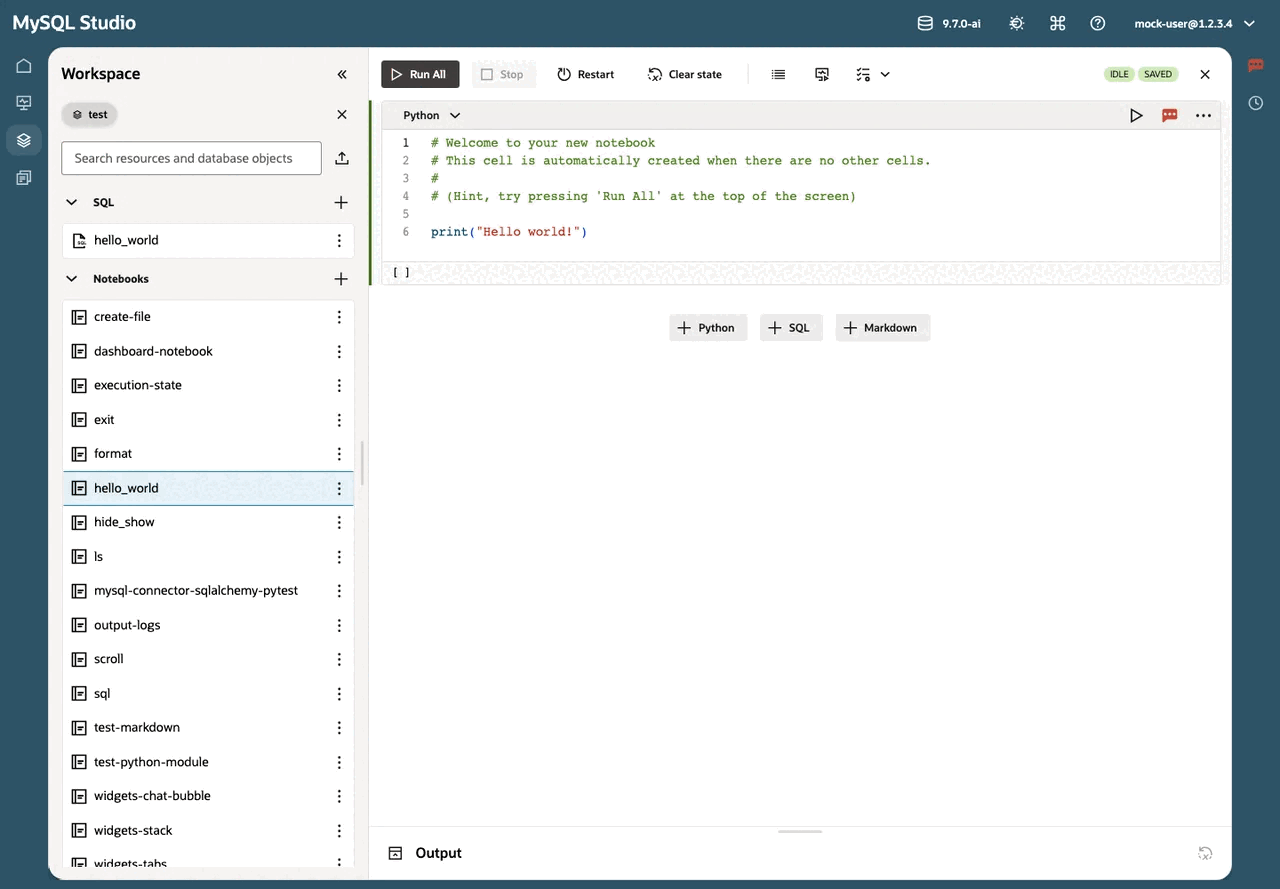
A new notebook opens in the main editor area and is ready for editing immediately.
Open and edit notebooks
Open a notebook from Workspace just like other content. Studio saves your changes automatically while you work, so you can return to a notebook later without a separate save workflow.
Notebooks are useful when you want the document itself to show both the steps you took and the outputs those steps produced.
Understand notebook cell types
Notebooks are made of cells. Different cell types support different kinds of work.
- Code cells are for executable code.
- Markdown cells are for narrative text, headings, notes, and explanations.
- Depending on your notebook workflow, code cells may contain Python or SQL-oriented content.
Change a cell type when you want to turn a rough note into narrative text, or when you want to replace explanatory text with executable logic.
Add, remove, and re-order cells
Notebook authoring is often about shaping the flow of a document, not just writing code.
As you work, you can:
- insert new cells where you need them
- delete cells that are no longer useful
- move cells up or down to improve the flow of the notebook
Re-order cells when you want the notebook to read more clearly from top to bottom, or when execution order should better match the story you are telling.
Run cells and review output
Run individual cells when you want to test a step or inspect an intermediate result. Run the full notebook when you want to refresh the entire workflow from top to bottom.
Outputs appear directly in the notebook, which may include:
- tabular results
- printed text
- charts or visual output
- rendered markdown content
This makes notebooks useful for both active exploration and shareable presentation.
Use markdown for explanation and structure
Markdown cells are what turn a notebook from a sequence of commands into a readable document.
Use markdown cells to:
- explain what the next step does
- add headings and subheadings
- capture assumptions or interpretation
- summarize findings between code sections
When notebooks are used well, the markdown and code support each other rather than feeling like separate artifacts.
Work with SQL and Python together
Notebooks are especially useful when you want to combine SQL-style data access with Python-based analysis or presentation.
For example, you might:
- query data
- transform or inspect it further in Python
- describe the result in markdown
- add charts or structured output
This makes notebooks a good fit for guided analysis, exploratory work, demos, and reports.
Use nearby Python files as helpers
Workspace can hold notebooks and Python files side by side. This lets you keep reusable helper code in a regular Python file and import it from your notebook.
Use this pattern when:
- helper functions are becoming too large for a notebook cell
- you want multiple notebooks to share the same utility code
- you want the notebook to stay focused on analysis and presentation
Create the Python file in the same working area, then import it from the notebook as needed.
Presentation mode
Use presentation mode when you want the notebook to read more like a guided document and less like an editing surface. This is useful for walkthroughs, demos, reviews, or presenting results to someone else.
Presentation mode is most effective when the notebook already has a clear sequence of markdown, code, and outputs.
Import and export notebooks
Use notebook import and export when you want to move work between Studio and other environments.
- Import a notebook when analysis began elsewhere and you want to continue it in Studio.
- Export a notebook when you want to archive it, share it, or continue working outside Studio.
This makes notebooks one of the most portable content types in Workspace.
Work inside projects
When a notebook belongs to a broader effort, create or open it inside a project so that related SQL files, Python helpers, data files, and notes stay together.
This is especially useful for workflows that evolve over time from experimentation into repeatable analysis.
Related guides
- Continue to Workspace Content for how notebooks fit into Workspace and Projects.
- Continue to the Notebook Essentials Guide for deeper notebook-specific walkthroughs.
Copyright (c) 2025, 2026, Oracle and/or its affiliates.