Explore Database Objects
Use Database Objects when you want to explore what is available in the connected MySQL environment without switching away from your current work. It is a discovery surface for schemas, tables, views, routines, users, AI-related assets, and long-running tasks.
Database Objects is especially useful alongside SQL authoring because it helps you inspect available objects before writing or refining queries.
What Database Objects shows
Depending on your environment and enabled capabilities, Database Objects can show categories such as:
- Schemas
- Tables and views
- Functions and procedures
- Users
- Async Tasks
- Language Models
- ML Models
- Vector Stores
Not every category appears in every environment. The exact content depends on your connection, privileges, and supported features.
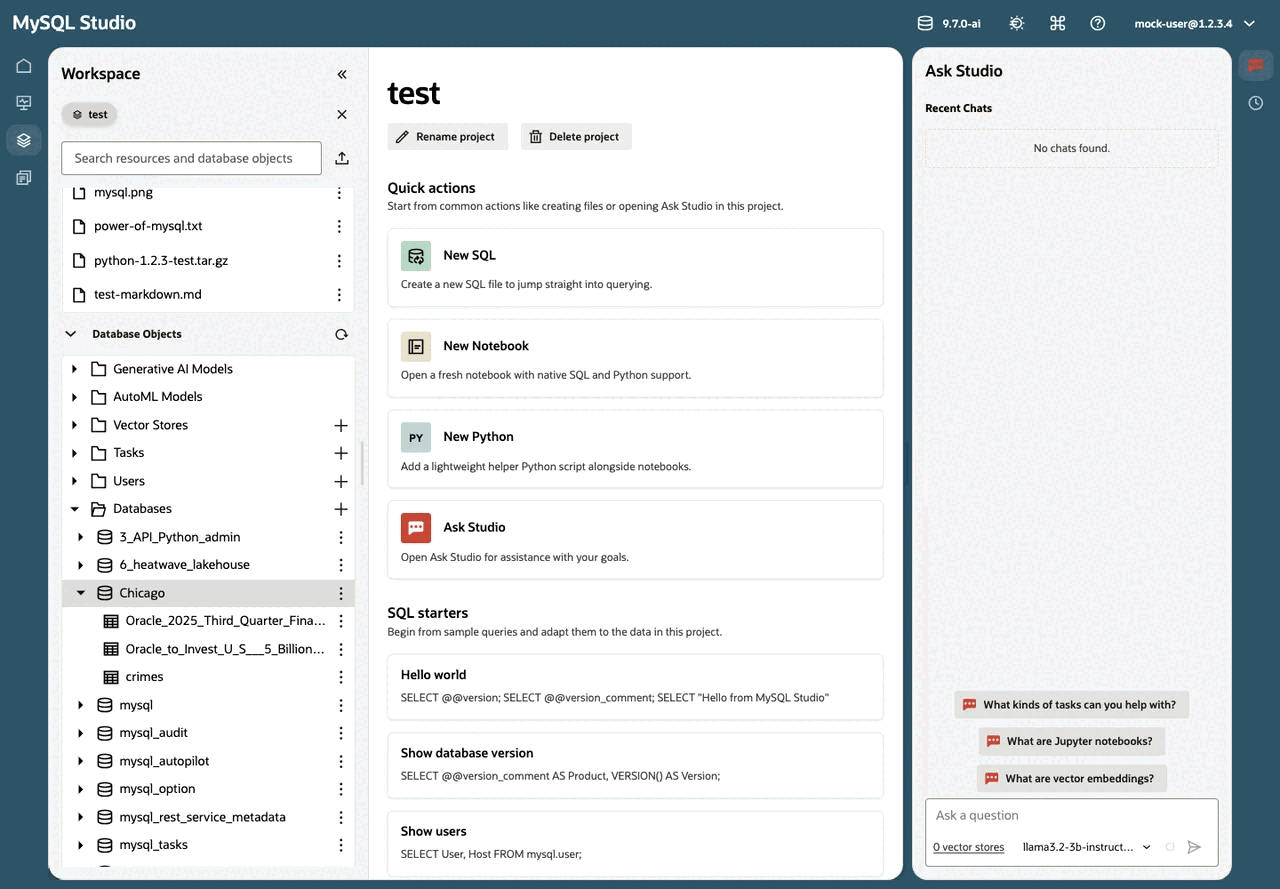
Explore your database structure
Use Database Objects when you want to inspect the structure of the connected database before writing SQL.
For example, you can use it to:
- browse available schemas
- inspect which tables and views exist
- look for routines such as stored procedures or functions
- understand what supporting assets are available in the connected environment
This is often the fastest way to orient yourself before opening or refining a SQL query.
Use Database Objects with SQL
Database Objects is closely connected to the SQL workflow.
Use it together with SQL files when you want to:
- discover what objects exist before querying
- inspect an object and then open SQL related to it
- move from browsing into authoring without leaving the current page
If you regularly work with SQL, treat Database Objects as a companion view rather than a separate workflow.
Understand object categories beyond schemas
In addition to schemas and tables, Database Objects can surface higher-level capabilities that matter for Studio workflows.
Users
Use the Users section when you need to review or work with database users available through the current connection and permissions.
Async Tasks
Use Async Tasks when a background operation continues after you start it. This view helps you monitor progress and review task state.
Language Models and ML Models
Use these sections when your environment supports AI or machine learning features. They help you see which models are available for related workflows in Studio.
Vector Stores
Use Vector Stores when you want to work with indexed document content that can support retrieval-based AI tasks such as Ask Studio responses grounded in uploaded content.
Work with environment-specific availability
Some Database Objects sections only appear when the connected environment supports them. Studio may also show an unavailable state when a capability exists conceptually but is not currently enabled for the active connection.
This means Database Objects reflects the actual capabilities of the current environment instead of presenting every feature as universally available.
Search and scan efficiently
Use the Database Objects search field when you already know part of an object name and want to narrow the list quickly. Expand only the sections you need so that the view stays focused on the current task.
Related guides
- Continue to Work with SQL to turn discovery into queries.
- Continue to Ask Studio to get explanations about objects and SQL from within the product.
Copyright (c) 2025, 2026, Oracle and/or its affiliates.