Ask Studio
Ask Studio is a built-in assistant that helps you understand what you are looking at, ask new questions, and continue earlier conversations without leaving MySQL Studio. Open it whenever you want help, and use Explain actions throughout Studio to ask Ask Studio about the current content.
Some models support Agent mode, which gives Ask Studio more powerful, agentic capabilities (for example, additional introspection steps) to help answer your question.
Ask Studio is designed to fit into your normal workflow instead of replacing it. You can open it directly, or let Studio open it for you when you trigger an explanation from SQL, database objects, files, or other parts of the interface.
Explain something you’re looking at
Use this when you want help understanding a page, object, file, or result in the UI.
- Click an Ask Studio icon or an Explain action (for example, Explain with Ask Studio).
- Ask Studio opens alongside your current work.
- An AI Agent prepares an explanation based on what you asked to explain.
You can continue the conversation by asking follow-up questions.
This is useful when you want an explanation without manually copying the current context into a new prompt.
Ask a new question (and keep the conversation for later)
Use this when you want to start a fresh explanation thread and return to it later.
- Open Ask Studio.
- Type your question.
- Select a model (Ask Studio remembers your selection).
- (Optional) Choose one or more Vector Stores.
- Submit your question.
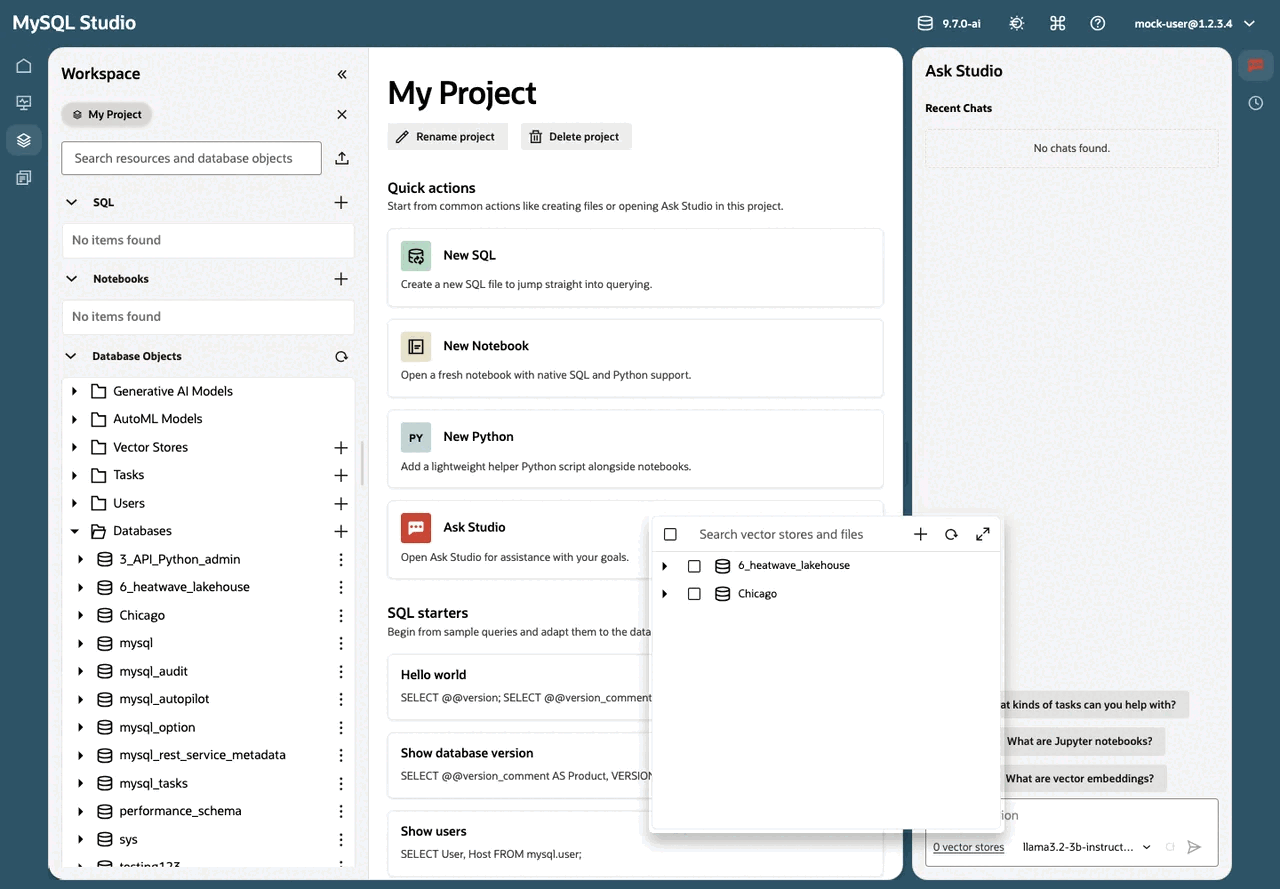
Ask Studio will create a new chat for your question and automatically ask it, so you can review the result immediately.
This makes Ask Studio useful both for one-off questions and for longer threads that develop over time.
Using Vector Stores
Vector Stores let Ask Studio search data that has been indexed from documents into a vector store. When you select Vector Stores for a question, the AI Agent can use those stores as a source of relevant information while answering.
Use Vector Stores when you want answers to be grounded in document content that has already been prepared for retrieval.
Return to a previous explanation
Use this when you want to revisit something Ask Studio explained before.
- Open Ask Studio.
- In Recent chats, select the conversation you want.
- Review the chat and continue asking follow-up questions.
This helps Ask Studio work as an ongoing assistant rather than a disposable prompt box.
Delete an explanation thread
Use this when you want to clean up old chats.
- From Recent chats, delete a chat you no longer need.
- Or, open a chat and delete it from within the chat view.
Notes
- New chats are named from your question (the app uses your question text as the base name).
- Ask Studio remembers your selected model so you do not need to choose it every time.
- Ask Studio is designed for “open-then-act” flows: a single click on Explain with Ask Studio can open Ask Studio and start the explanation, even if Ask Studio was not already open.
- The available model behavior may vary by environment and selected model.
Copyright (c) 2025, 2026, Oracle and/or its affiliates.