Work with SQL
Work with SQL in MySQL AI by creating a SQL file in Workspace and editing it there. From there you can run queries, inspect database objects, review results, format statements, and use AI-assisted helpers when they are available.
Create a SQL file
You can start from an empty SQL file or from a sample.
From Workspace
- Open Workspace.
- Select the Add SQL button or use a Workspace quick action.
- Choose one of:
- New SQL to create an empty SQL file.
- SQL samples to create a SQL file prefilled with a sample query.
From the Home page
Select Sample SQL to add a sample SQL file in Workspace.
If you are working inside a project, create the SQL file there so it stays grouped with related work.
Open and continue existing SQL work
SQL files are part of Workspace content, so you can reopen them later like other saved items.
Use this when you want to:
- continue a saved query workflow
- keep reusable statements for later
- organize SQL work inside a project
Studio saves content as you work, so reopening and refining a SQL file is part of the normal workflow.
Run a query
- Open a SQL file.
- Enter your SQL in the editor.
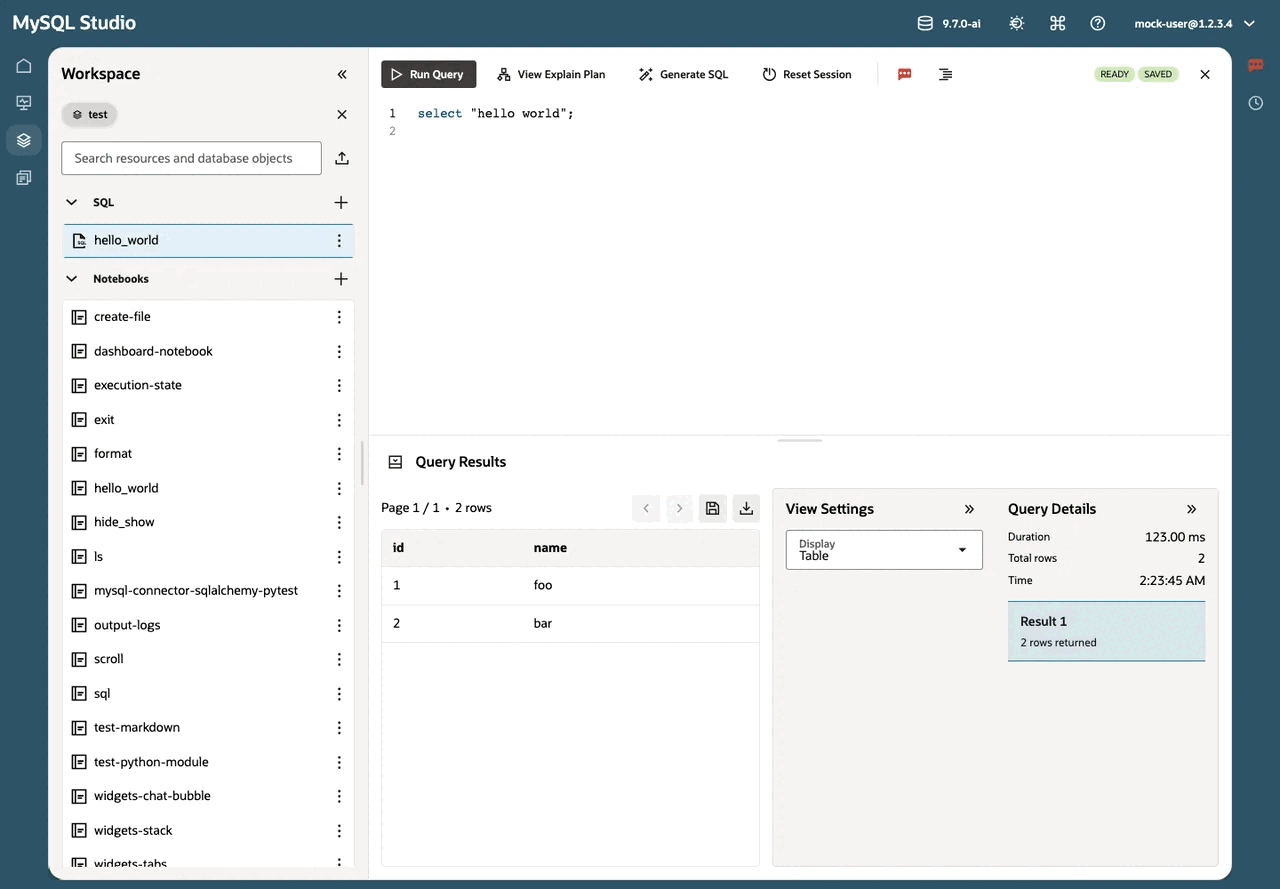
- Select Run Query.
Results appear in the Query Results section.
If your query returns output, it opens in the Query Results section so you can review it without leaving the file.
Explain a query
Select View Explain Plan to run an
EXPLAIN for the current query and view the
output in the Query Results
section.
Use this when you want to understand how MySQL is planning to execute the current statement.
Format SQL
Use Format SQL when you want to clean up the current statement for readability before reviewing, sharing, or continuing to edit it.
This is useful for long statements, generated SQL, or copied queries that need consistent formatting.
Generate SQL from natural language
Use the built-in SQL generation helper when you want to describe a query in plain language and turn that description into SQL.
This is useful when you:
- know the result you want but not the exact syntax
- want a faster starting point for a query
- plan to review and refine generated SQL before running it
Ask Studio to explain SQL
Use SQL Insight or related Ask Studio actions when you want help understanding a statement, a query pattern, or the result of a SQL task.
This opens Ask Studio with the current SQL as context so you can ask follow-up questions without retyping the query.
Explore Database Objects while writing SQL
The SQL experience works well with Database Objects, which helps you inspect schemas, tables, views, routines, users, and environment capabilities while you are authoring queries.
Use Database Objects when you want to:
- discover object names before writing SQL
- inspect what is available in the connected database
- move from exploration into query authoring more quickly
Continue with the Explore Database Objects Guide for more detail.
Work with Query Results
- Multiple result sets: If your SQL returns multiple result sets, use the Result sets list to switch between them.
- Charts: Use the Display option in the Query Results section to switch between a table view and available chart views.
- Export: Download query results as CSV, or save the results in Workspace as a CSV file.
Use the Query Results section when you want to move from raw output into inspection, comparison, or export.
Review SQL history
Use SQL History when you want to revisit recently executed statements, compare what you tried earlier, or rerun a previous query.
This is useful when you are iterating quickly and do not want to lose earlier attempts.
Reset the SQL session
Use Reset Session when the current SQL runtime becomes out of sync or you want a clean execution state.
This is helpful when temporary state, session variables, or connection behavior no longer match what you expect.
Import and export SQL work
SQL work in Studio is not limited to writing queries from scratch.
- Create new SQL files and save them in Workspace.
- Reopen existing SQL files when you want to continue earlier work.
- Start from sample SQL when you want a faster entry point.
- Export results when you want to take query output outside Studio.
- Download saved SQL content when you want to archive or share it.
Optional tools
- Generate SQL: Use natural language to generate SQL.
- SQL Insight: Send the current SQL to Ask Studio for an explanation.
- SQL History: Review recently executed statements.
- Reset Session: Reset the SQL session if it becomes out of sync.
Copyright (c) 2025, 2026, Oracle and/or its affiliates.