Introduction
MySQL Studio brings SQL, notebooks, workspace content, guides, and AI assistance into a single application. You can move from exploring a database to writing queries, documenting analysis, organizing project work, and asking for help without leaving Studio.
Use this page as the starting point for the main product surfaces and workflows. If you already know what you want to do, jump directly to the guide that matches your task.
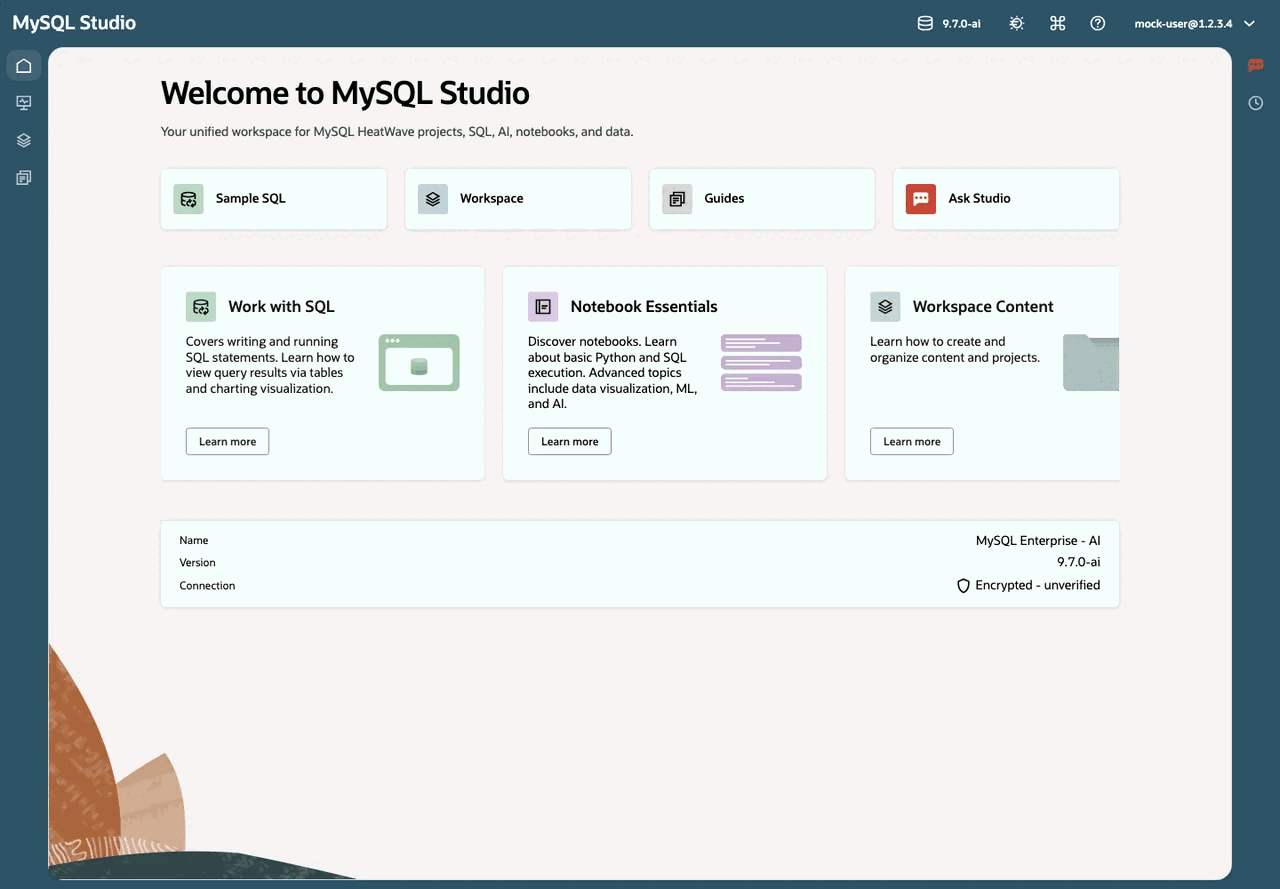
- Work with SQL Guide — write, run, format, explain, and export SQL work
- Notebooks Guide — create, author, run, and present notebooks inside Studio
- Ask Studio Guide — in-product AI assistance and contextual explanations
- Workspace Content Guide — create, open, and organize content in Workspace
- Explore Database Objects Guide — inspect schemas, users, tasks, models, and vector stores
- Notebook Essentials Guide — deeper notebook-specific walkthroughs
How the application is organized
MySQL Studio is organized around a few core surfaces that work together:
- Workspace is where you create, open, and organize content.
- SQL workflows help you query data and inspect results.
- Notebooks help you combine code, markdown, and output in one document.
- Database Objects help you inspect the connected environment before or while writing queries.
- Ask Studio helps you understand what you are looking at and continue work with AI assistance.
- Guides and learning content help you discover product workflows and example-driven material.
These surfaces are designed to support moving between discovery, execution, explanation, and organization without changing tools.
Work with SQL
Use a SQL file when you want to write queries, run them, inspect results, and save reusable statements directly against MySQL AI.
- Create a new SQL file or start from a sample.
- Run queries and review table or chart output.
- Inspect schema details and database objects while authoring.
- Use built-in helpers to explain, generate, format, or export SQL-related work.
Continue with the Work with SQL Guide.
Work in notebooks
Use notebooks when you want to combine executable code, markdown, and rich output in one place.
- Combine Python, SQL, markdown, and results in a single document.
- Capture analysis steps alongside explanations.
- Re-order cells, change cell types, and use presentation mode for more polished workflows.
- Build repeatable workflows for exploration, reporting, demos, or prototyping.
Continue with the Notebooks Guide for Studio-specific notebook workflows, then use the Notebook Essentials Guide for deeper notebook material.
Explore database objects
Use Database Objects when you want to inspect schemas, tables, views, routines, users, background tasks, AI-related models, or vector stores in the connected environment.
- Browse what is available before writing SQL.
- Use the object tree as a companion to query authoring.
- Review environment-specific capabilities without leaving Studio.
Continue with the Explore Database Objects Guide.
Use Ask Studio
Use Ask Studio when you want help understanding the application, the data you are viewing, or the next step in a workflow.
- Ask questions about what is on screen.
- Get explanations for SQL, database objects, or interface features.
- Use contextual explain actions that open Ask Studio and start the request for you.
- Search indexed document content through Vector Stores when available.
Continue with the Ask Studio Guide.
Organize files and projects
Use Workspace to create content immediately, then add projects when you want to group related work.
- Create content without setting up a project first.
- Open existing content and switch between file types in one interface.
- Use projects to keep related work together under one shared context.
- Keep notebooks, SQL, Python helpers, chats, and supporting files together.
Continue with the Workspace Content Guide.
Typical workflows
- Explore Database Objects, then open SQL to query what you found.
- Save useful queries in Workspace and export results when needed.
- Create a notebook when you want to combine narrative explanation with code and outputs.
- Add a Python file beside a notebook when you want reusable helper logic.
- Open Ask Studio when you want an explanation of a result, object, or interface feature.
- Create a project when related work should stay organized together.
Next steps
- Open the Work with SQL Guide to run your first queries.
- Open the Notebooks Guide to start working with notebooks inside Studio.
- Open the Ask Studio Guide to learn how to get help inside the application.
- Open the Workspace Content Guide to organize and manage your work.
- Open the Explore Database Objects Guide to understand the connected environment.
Copyright (c) 2025, 2026, Oracle and/or its affiliates.